Home
Home
Quick Ways to Turn a PDF to PPT for Your Next Presentation

Documents often arrive in formats that are convenient for reading but restrictive for presenting. The transition from a static PDF to an editable PowerPoint presentation is a common necessity in corporate and academic environments. Whether the goal is to repurpose existing data or to breathe life into a research paper for a board meeting, understanding the nuances of a pdf to ppt conversion is essential for maintaining visual integrity and saving hours of manual re-typing.
The core mechanics of converting pdf to ppt
At its heart, converting a PDF into a PowerPoint file is not a simple file extension change. It involves a complex process of layout analysis. PDF files are designed to preserve the exact appearance of a document across different devices by fixing the positions of text and images. In contrast, PowerPoint files are structured around objects—text boxes, shapes, and media—that are meant to be manipulated and animated.
Modern conversion engines perform structural element recognition. This means the software attempts to identify what constitutes a header, what belongs to a bulleted list, and which images should be treated as background elements versus interactive charts. High-quality tools ensure that these elements remain as individual objects in the resulting PPTX file rather than being flattened into a single image per slide.
Reliable online solutions for immediate needs
For most quick tasks, web-based converters provide a balance between speed and quality. Since the PDF format was originally created by Adobe, their online ecosystem remains a primary benchmark for accuracy. Using a browser-based tool allows for the conversion of files on the go, regardless of the operating system being used.
When utilizing online platforms, the process generally involves a secure upload to a server where the conversion engine parses the document. One major advantage of using top-tier online services is the preservation of formatting. When a file is processed, the engine looks for font metadata and attempts to map it to the closest available system fonts in the PowerPoint environment. This prevents the common issue of text "bleeding" or overlapping after the conversion is complete.
Advanced desktop software for batch processing and security
Professional environments often require more robust features than a standard web tool can offer. Desktop applications such as Foxit or PDFelement are preferred when dealing with sensitive information that cannot leave a local network. These programs offer a layer of security through local processing, ensuring that proprietary data remains within the organizational firewall.
Beyond security, desktop software excels in batch conversion. If a project involves turning dozens of individual PDF reports into a single cohesive presentation, desktop tools allow for automated workflows. They also offer more granular control over the output. For instance, a user can specify whether they want the converter to prioritize text editability or visual layout. Choosing "editability" might result in more fragmented text boxes that are easier to modify, while "visual layout" might use more groupings to ensure the slide looks exactly like the original page.
Handling scanned documents with OCR technology
One of the most significant hurdles in document conversion is dealing with scanned PDFs. These are essentially high-resolution images of text, containing no actual character data for a computer to read. In such cases, standard conversion methods will simply place a large image on each PowerPoint slide, leaving the text uneditable.
Optical Character Recognition (OCR) is the solution to this problem. Advanced OCR engines in 2026 have evolved to recognize not just characters, but the context of the layout. They can distinguish between a table and a decorative graphic. When converting a scanned pdf to ppt, the OCR engine scans the image, identifies the letterforms, and converts them into editable text strings. This process also extends to image reconstruction, where the tool attempts to separate text from background textures, allowing for a clean, professional-looking slide even from an old, scanned document.
The impact of AI on presentation generation in 2026
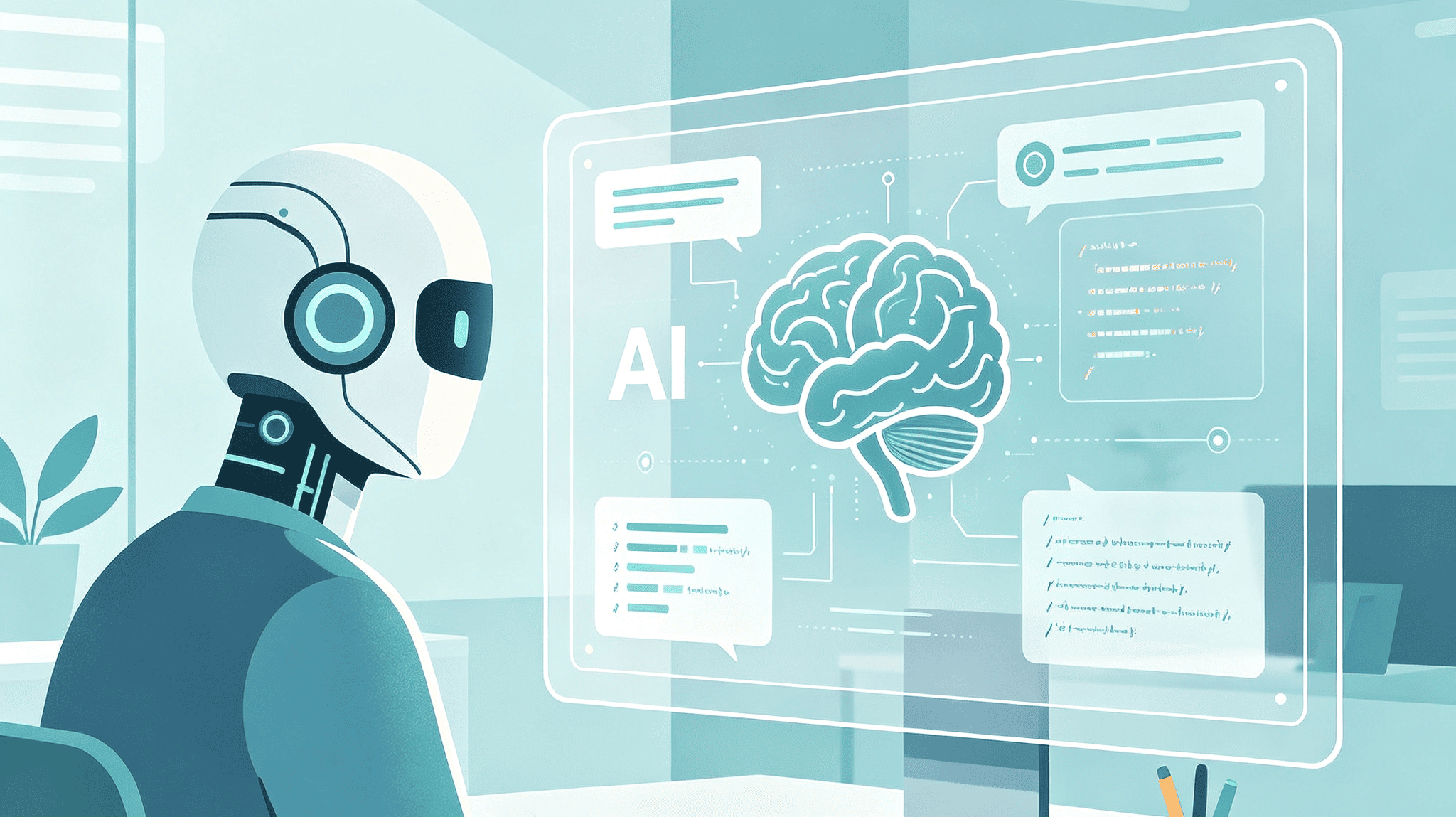
As we move through 2026, the integration of Artificial Intelligence has transformed the simple conversion process into a sophisticated content synthesis workflow. Traditional conversion creates a slide-for-slide copy of the PDF. However, modern AI-driven tools can perform summarization and intelligent reflowing.
Instead of merely moving text from one format to another, AI agents can read a 50-page PDF and determine the five most critical points for a presentation. They can then generate slides that aren't just copies of the pages but are optimized for a live audience—using concise bullet points, generating relevant AI imagery, and even suggesting speaker notes based on the original document's context. This "smart conversion" bridges the gap between a dense report and an engaging visual story.
Technical implementation: A developer's perspective
For those looking to automate these processes within their own software stacks, libraries like pypdf2 and python-pptx provide a powerful foundation. The logic involves two distinct stages: parsing and generation.
- Parsing: The system reads the PDF stream to extract text coordinates, font sizes, and image blobs.
- Generation: The system initializes a PowerPoint presentation object and iterates through the extracted data to create new slides, placing text boxes at the calculated coordinates.
More advanced implementations now incorporate GPT-based models to handle the semantic understanding of the text. By feeding extracted text into a Large Language Model (LLM), developers can automate the creation of slide titles and the categorization of content into specific templates, making the resulting PPTX file feel less like a conversion and more like a bespoke creation.
Optimization tips for a seamless conversion
To achieve the best results when moving from pdf to ppt, certain pre-conversion steps can be beneficial.
- Check PDF Accessibility: A PDF with a clear internal structure (tags and headings) will always convert better than a "flat" PDF. Ensuring the source document is accessible improves the engine's ability to recognize headers and lists.
- Font Considerations: If the original PDF uses highly specialized or non-embedded fonts, the resulting PowerPoint may default to Arial or Calibri, potentially breaking the layout. It is often helpful to use standard web-safe fonts in the source document if a conversion is planned.
- Image Resolution: High-resolution images in a PDF can lead to massive PowerPoint file sizes. Some converters offer an option to downsample images during the process, which is useful for presentations that need to be shared via email.
- Slide Dimensions: Standard PDFs are usually A4 or Letter size (vertical), while modern presentations are 16:9 (horizontal). Choosing a tool that allows for intelligent "reflow" can help prevent large white margins on the sides of your slides.
Privacy and data integrity
When using any tool for a pdf to ppt task, the sensitivity of the data must be the primary concern. For personal projects or public information, free online tools are exceptionally convenient. However, for legal documents, financial records, or medical data, the use of offline, professional-grade software is the more prudent choice.
It is also worth noting that conversion often strips away certain metadata and hidden layers present in the original PDF. While this can be a form of "sanitization" (removing hidden comments or track changes), it also means that any interactive elements like PDF forms or 3D annotations will likely be lost in the transition to the PowerPoint format.
Making the final choice
The decision of which method to use depends entirely on the specific requirements of the project. If the goal is a one-time conversion of a simple text document, a quick online tool is sufficient. If the task involves complex layouts, scanned pages, or high-security data, investing in a dedicated desktop solution with OCR capabilities is recommended. For those looking to redefine how they present information, the new wave of AI-integrated converters offers a glimpse into a future where the transition from a static document to a dynamic presentation is not just a change of format, but an upgrade in communication quality.
-
Topic: Convert PDF to PowerPoint | Free PDF to PPT Converter | Adobehttps://www.adobe.com/uk/acrobat/online/pdf-to-ppt.html
-
Topic: 3 Ways to Convert PDF to PPT (Updated 2026)https://pdf.wondershare.com/how-to/convert-pdf-to-powerpoint.html
-
Topic: PDF TO PPT CONVERTERhttps://www.irjmets.com/uploadedfiles/paper//issue_12_december_2024/65599/final/fin_irjmets1738749576.pdf