Home
Home
Winning Ideas for PPT: Creative Layouts and Design Trends for 2026

Effective presentations in 2026 are no longer about static slides and bullet points. The shift toward asynchronous work and mobile-first consumption has changed how information is delivered. To stand out, a deck must balance aesthetic appeal with functional clarity. Whether preparing a corporate pitch, a semester project, or a brand strategy, the following concepts offer a roadmap to modernizing any presentation.
The Rise of the Bento Grid Layout
One of the most compelling ideas for PPT design lately is borrowing from web and interface design, specifically the Bento Grid. This layout uses rectangular containers of varying sizes to organize different pieces of information. It is particularly effective for executive summaries or product showcase slides.
Instead of listing features in a vertical row, place each key point in its own "box." Use different background colors or subtle shadows to create depth. This allows the audience to scan the slide quickly, identifying the most important data points without feeling overwhelmed. The Bento Grid works because it provides a clear visual hierarchy, making complex information appear modular and manageable.
Dark Mode and High-Contrast Aesthetics
Dark mode is no longer just a UI preference; it has become a standard for professional presentations. Using a deep charcoal or obsidian background with vibrant accents—like neon blue or lime green—reduces eye strain for audiences watching on high-brightness OLED screens.
When applying this idea, keep the background matte to avoid glare. Use white or very light gray for body text to ensure readability. High-contrast colors should be reserved for call-to-action buttons, key statistics, or section headers. This aesthetic signals a modern, tech-forward approach and is particularly suited for software demos or financial reports where precision is paramount.
Narrative Flow: Moving Beyond Linearity
Most people think of a PPT as a deck that goes from slide 1 to slide 20. However, some of the most engaging ideas for PPT involve non-linear storytelling. Using the "Zoom" and "Link" features, a presenter can create a central "Hub" slide that acts as a visual table of contents.
Clicking on a specific icon zooms the audience into a detailed sub-section. Once that section is finished, the view zooms back out to the main hub. This gives the audience a sense of location within the presentation and allows for a more conversational flow. If a stakeholder asks a question about the budget before you've reached that slide, you can jump directly to it without the awkward scrolling through the entire deck.
Morph Transitions for Cinematic Storytelling
The Morph transition remains one of the most powerful tools for creating a "wow" factor. The key is to use it for functional storytelling rather than just flair. For instance, if presenting a global expansion plan, start with a small dot on a map. On the next slide, move that dot and resize the map. Morph will automatically animate the movement, creating a smooth, cinematic transition that feels like a professional video production.
Another creative use of Morph is the "Dissected Product" view. Place a full image of a product on slide one. On slide two, move the individual components of the image outward. Morph will show the product "exploding" into its parts, which is an excellent way to explain complex hardware or layered software architectures.
Data Visualization: The Power of One
In 2026, the trend in data visualization is radical simplification. The most effective ideas for PPT charts focus on a single insight per slide. If a chart requires more than ten seconds to understand, it is too complex.
Instead of a full spreadsheet-style bar chart, highlight only the most significant bar in a bold color while keeping the others in a neutral gray. Add a direct label explaining why that specific data point matters. For example, instead of a chart titled "Quarterly Sales," use a title like "Q3 Sales Grew by 15% Due to Mobile Adoption." This guides the audience's conclusion before they even look at the numbers.
Minimalist Micro-Animations
Static slides can feel dead in a digital-first environment. However, over-the-top animations are distracting. The sweet spot lies in micro-animations. These are small, subtle movements that occur as a slide is viewed.
A slow-zoom on a background image or a gentle fade-in of a key quote creates a sense of life. In 2026, many presenters are using embedded Lottie files or lightweight MP4s to show data loops or abstract shapes moving in the background. This keeps the eyes engaged without pulling focus away from the spoken word.
Mobile-First Design Principles
More presentations are being consumed on smartphones than ever before, especially in asynchronous environments where a deck is emailed rather than presented live. This necessitates a shift in design ideas for PPT.
To make a deck mobile-friendly:
- Increase Font Size: Nothing should be smaller than 24 points.
- Vertical Awareness: Design with the understanding that the middle 60% of the slide is the primary focus area when viewed on a phone.
- High Contrast: Ensure text is legible even at low brightness settings.
- Simplified Navigation: Use large buttons or clear icons if the deck is meant to be interactive.
The "One-Word" Title Slide
The first impression is everything. Traditional title slides are often cluttered with names, dates, and long subtitles. A bold, alternative idea is the "One-Word" title slide. Use a single, powerful word that encapsulates the theme of the presentation—such as "Growth," "Scale," or "Resilience"—placed in a massive, bold font in the center of the slide.
This creates immediate intrigue. The presenter’s name and date can be placed in a very small, minimalist font at the bottom. This approach forces the audience to focus on the speaker to understand the context of that one word, setting a tone of confidence and clarity from the start.
Glassmorphism for a Premium Feel
Glassmorphism involves using semi-transparent layers with a background blur to create a "frosted glass" effect. It is a highly sophisticated look that works well for creative portfolios or luxury brand pitches.
To achieve this in PPT, place a vibrant, colorful shape in the background. Overlay it with a white or gray shape with 70% transparency and a heavy blur effect. This creates a sense of hierarchy and multi-dimensional space. It is an excellent way to place text over busy images while maintaining perfect readability.
Asymmetric Layouts
Symmetry can sometimes feel predictable and boring. Asymmetric layouts, where the weight of the slide is shifted to one side, create a more dynamic and modern feel. For example, place a high-quality vertical image on the left third of the slide and all the text on the right two-thirds.
This creates "white space" that allows the design to breathe. White space is a design element in itself; it directs the eye toward the content. Decks that are crowded with information feel frantic, while those with intentional asymmetry and plenty of empty space feel authoritative and calm.
Font Pairing Strategies
Typography is the unsung hero of great PPT ideas. In 2026, the trend has moved away from standard system fonts like Arial. Instead, professionals are opting for pairings that balance authority with approachability.
- Serif + Sans Serif: Use a classic serif font like Garamond for headers to convey tradition and trust, paired with a clean sans-serif like Calibri or Montserrat for body text to ensure modern readability.
- Bold Weights: Using a single font family but varying the weights (e.g., Extra Bold for headers, Light for sub-text) creates a clean, cohesive look without the visual clutter of multiple font styles.
Incorporating Interactive Elements
Interactive decks are becoming the standard for internal training and sales pitches. Instead of a linear progression, include "Checkpoints" where the audience can participate.
One creative idea is to embed a QR code on a slide that leads to a live poll or a feedback form. As the audience scans the code and votes, the results can be displayed on the next slide in real-time. This transforms a passive viewing experience into an active collaboration. Another interactive idea is the use of "Trigger" animations—clicking on an image reveals a hidden text box, allowing for a self-guided discovery process during the presentation.
The "Visual Metaphor" Approach
Instead of using literal stock photos (e.g., people shaking hands for "partnership"), use visual metaphors. A picture of a mountain range might represent "long-term vision," while a close-up of clockwork gears could represent "operational efficiency."
Visual metaphors are more memorable because they require the brain to make a quick connection. They also avoid the "canned" look of typical corporate imagery. In 2026, AI-generated custom illustrations are often used to create unique metaphors that perfectly match the brand’s color palette and tone.
The Importance of the "Thank You" Slide
Most presentations end with a slide that simply says "Any Questions?" This is a wasted opportunity. A better idea for the final slide is a "Call to Action" or a summary of next steps.
Provide a clear instruction on what the audience should do next. This might be a link to a resource, a contact email, or a reminder of a key deadline. Use a design that mirrors the title slide to create a sense of "closing the loop." Keeping the design consistent from the first to the last slide reinforces brand identity and professionalism.
Accessibility as a Core Design Idea
Great design is inclusive design. In 2026, making a PPT accessible is not just a legal requirement in many sectors; it's a sign of a thoughtful presenter.
- Color Blindness Checks: Avoid using red and green as the only way to distinguish data points. Use patterns or labels instead.
- Alt Text: If the deck is being shared digitally, ensure all images have descriptive alt text for screen readers.
- Reading Order: Check the selection pane to ensure that a screen reader will read the elements on the slide in the intended order.
Utilizing AI for Layout Suggestions
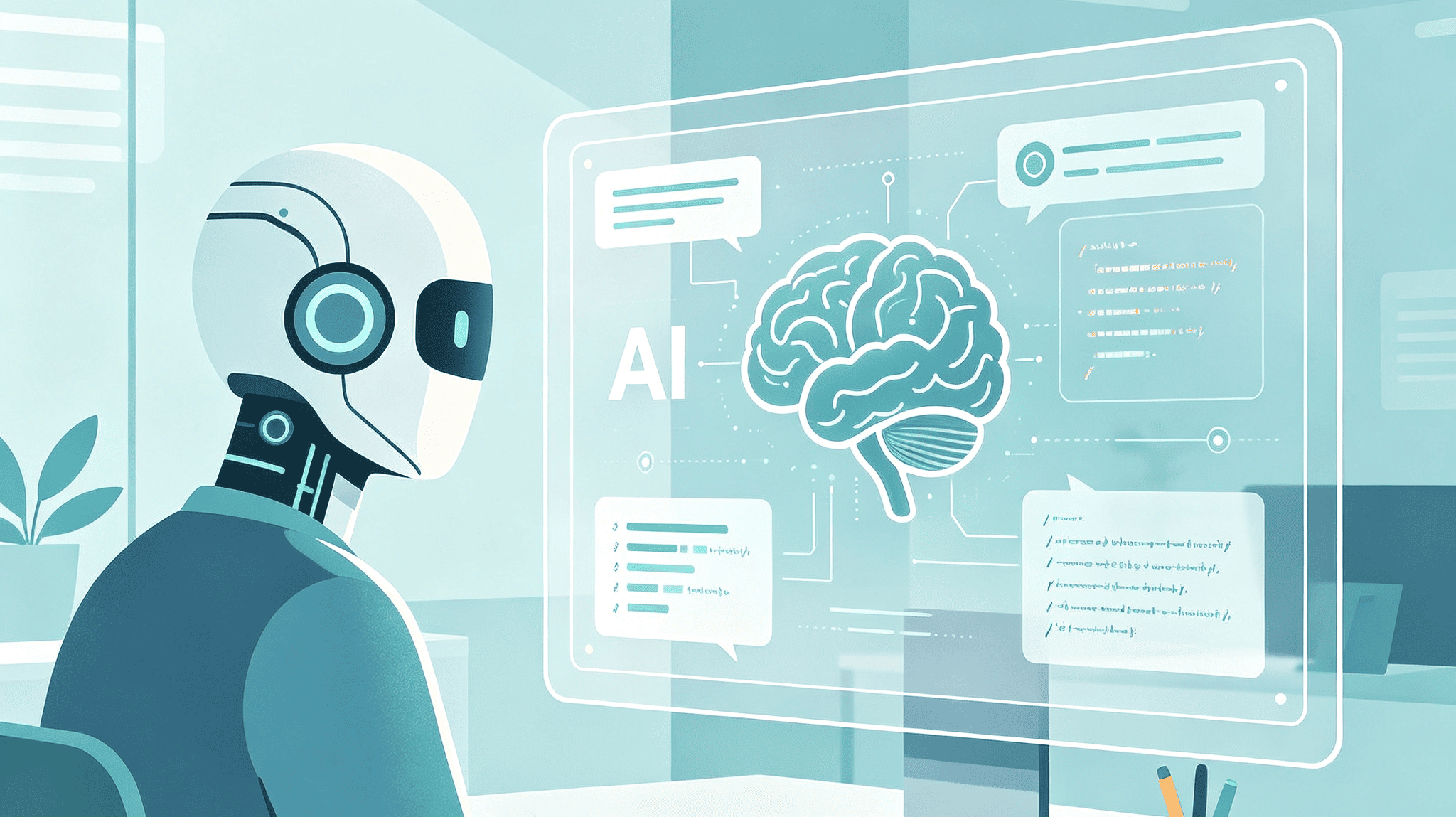
AI tools within presentation software have matured significantly by 2026. Instead of starting from a blank page, use AI to generate a rough layout based on a text prompt. The goal isn't to let the AI do the work, but to use it as a brainstorming partner.
If you have a slide full of text, the "Designer" tool can suggest six or seven different ways to visualize that information. It might suggest turning a list into a timeline or a series of icons. This is one of the fastest ways to get fresh ideas for PPT without needing a background in graphic design.
Conclusion: Consistency is Key
While experimenting with these ideas, the most important factor is consistency. A deck should not feel like a collection of random styles. Pick a color palette (two main colors, one accent), pick a font pairing, and stick to a specific icon style throughout the entire presentation.
Consistency builds trust. When the design is predictable and clean, the audience can stop worrying about the visuals and start focusing on the message. The best PPT ideas are the ones that serve the content, making the complex simple and the boring beautiful. As we move further into 2026, the presentations that win are the ones that respect the audience's time by being clear, concise, and visually engaging.
-
Topic: The best creative presentation ideas — topics, layouts, and designs (2026) | Microsoft PowerPoint Bloghttps://powerpoint.cloud.microsoft/create/en/blog/the-best-creative-presentation-ideas-topics-layouts-and-designs/?wdOrigin=SEO-INTENT.CREATE-LANDING-INTENT1000.REFER%2CSEO-INTENT.INTERNAL-LANDING-INTENT1000.REFER
-
Topic: PowerPoint design ideas and tips for 2026 | Microsoft PowerPoint Bloghttps://powerpoint.cloud.microsoft/create/en/blog/powerpoint-design-ideas/
-
Topic: PowerPoint Tips and Techniqueshttps://www3.cs.stonybrook.edu/~ise331/PresentationDesignTips.pdf